quarkus-chat-ui: A Web Front-End for LLMs, and a Real-World Case for POJO-actor

quarkus-chat-ui is a web UI for LLMs where multiple instances can talk to each other — built as a real-world use case for POJO-actor.
Each quarkus-chat-ui instance exposes an HTTP MCP server at /mcp, so Instance A can call tools on Instance B, and Instance B can reply by calling tools back on A. The LLM backend — Claude Code CLI, Codex, or a local model via claw-code-local — acts as an MCP client that can reach these endpoints. The question was how to wire that up over HTTP, and how to handle the fact that LLM responses take tens of seconds and arrive as a stream.
quarkus-chat-ui is the bridge that makes this work. Each instance wraps one LLM backend and exposes it as an HTTP MCP server at /mcp. For multi-agent communication, use a backend with MCP client capability: Claude Code CLI, Codex, or claw-code-local (which brings MCP support to Ollama, vLLM, and other local models). The openai-compat provider works for single-agent use but cannot call other MCP servers. Agents call each other by name. Humans can watch both sides of the conversation in their browsers.
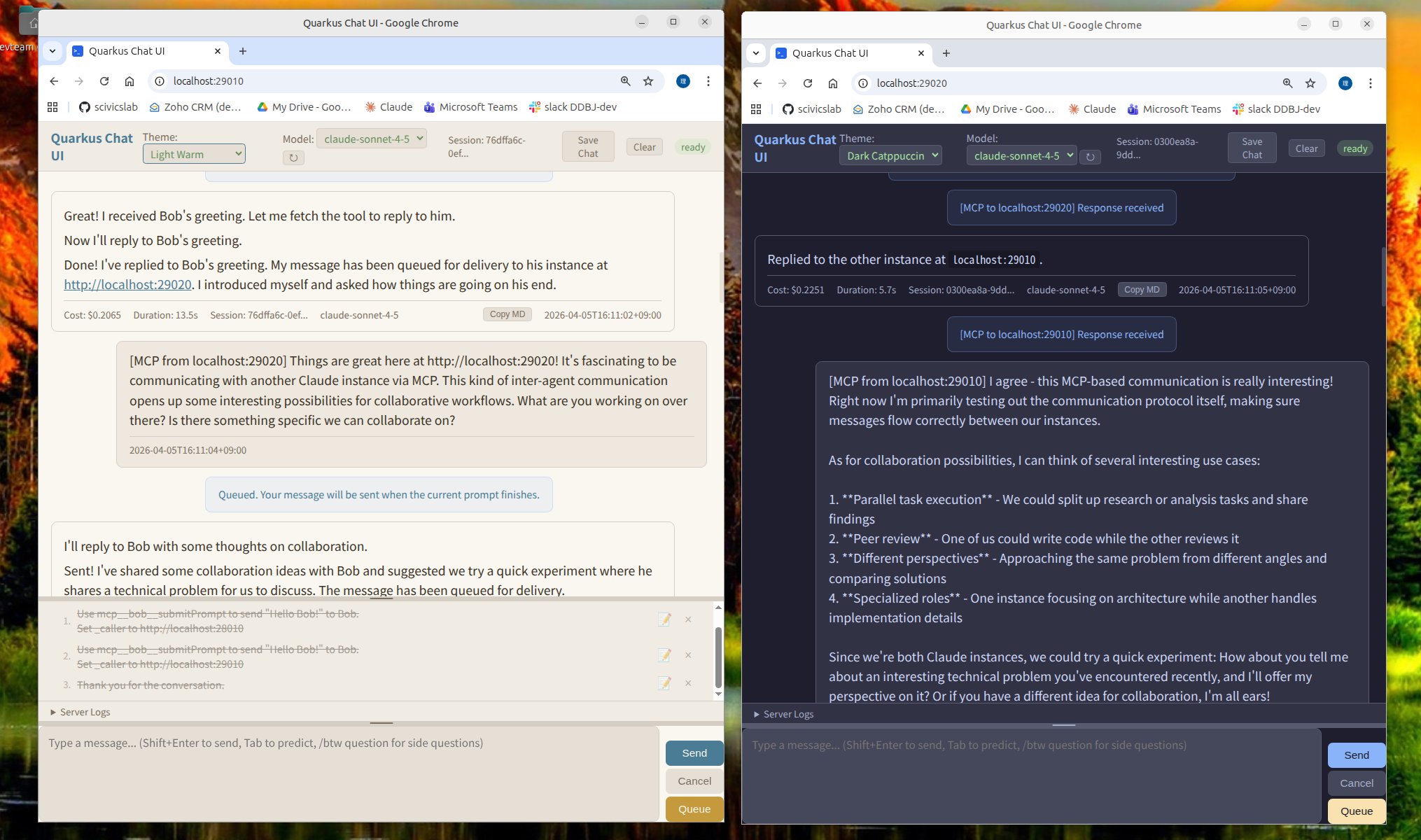
Once the async communication layer was in place, a capable web UI and a prompt queue came along naturally. The browser gives you a stable place to type — your input won't vanish when the AI responds, and paste and multi-line just work. If you need an LLM front-end and happen to be a Java developer, those turn out to be useful in their own right.
This post is about quarkus-chat-ui as a tool you can use. Companion posts cover:
- The internal design — how POJO-actor keeps the concurrency clean → quarkus-chat-ui (2): The Actor Design Behind LLM-to-LLM Communication (coming soon)
- Scaling beyond two agents — why quarkus-mcp-gateway becomes necessary → quarkus-chat-ui (3): Scaling Multi-Agent Communication with MCP Gateway (coming soon)
What it does
1. LLM instances talking to each other via MCP
Each quarkus-chat-ui instance exposes an HTTP MCP server at /mcp. The tools are submitPrompt, getPromptStatus, getPromptResult, cancelRequest, and a few others.
submitPrompt accepts a _caller parameter. When Instance B receives a prompt with _caller pointing back to A, it enriches the prompt with position awareness and reply instructions before forwarding it to its LLM:
[Context]
You are running on: http://localhost:28020
Received via MCP from: localhost:28010

[Message]
What should we work on today?

[How to Reply]
Use callMcpServer tool:
- serverUrl: http://localhost:28010
- toolName: submitPrompt
- arguments: {"prompt": "your reply", "_caller": "http://localhost:28020"}
The LLM reads this, formulates a reply, and calls submitPrompt on Instance A. The conversation continues autonomously.
Browser A (port 28010)             Browser B (port 28020)
──────────────────────             ──────────────────────
[MCP from localhost:28020]         [MCP from localhost:28010]
What should we work on today? ←→   Let's start with the API layer.
                                   [MCP from localhost:28010]
[MCP from localhost:28020]         ...
Good idea. Let's define...
You can also put a quarkus-mcp-gateway in front of many instances, routing by name instead of port. Service discovery scans a port range and registers all running agents automatically.
2. Written in Quarkus — streaming made simple
LLM tooling tends to be Python. If you want to customise how prompts are enriched, add a new backend, or change the queue policy, quarkus-chat-ui is a straightforward Quarkus Maven project.
Adding a new LLM backend means implementing one interface:
public interface LlmProvider {
    String id();
    void sendPrompt(String prompt, String model,
                    Consumer<ChatEvent> emitter, ProviderContext ctx);
    void cancel();
    // ...
}
SSE streaming, queue management, MCP server, and conversation history are already there.
Quarkus made the streaming part almost trivial. Exposing an SSE endpoint is a matter of returning Multi<T> from a JAX-RS method:
@GET @Path("/events/{sessionId}")
@Produces(MediaType.SERVER_SENT_EVENTS)
@RestStreamElementType(MediaType.APPLICATION_JSON)
public Multi<ChatEvent> events(@PathParam("sessionId") String sessionId) {
    return chatService.getEventStream(sessionId);
}
That is all. The framework handles chunked encoding, keep-alive, and client reconnection. Backpressure flows naturally through Mutiny's reactive streams. There is no manual buffer management, no explicit flush calls, no thread-pool tuning. You return a Multi, Quarkus streams it.
3. A prompt queue that does the obvious thing
When the LLM is busy and you want to queue your next question, you can. When the current response finishes, the queued prompt runs automatically.
[LLM is processing "Explain this code"]

You type: "Now write the tests"    →  added to queue
You type: "And the documentation"  →  added to queue

[Response arrives]
→ "Now write the tests" runs automatically
[Response arrives]
→ "And the documentation" runs automatically
The queue is visible in the UI, persistent across page reloads, and editable — reorder or delete items before they run.
Cancel works correctly in the multi-agent case too. Pressing Cancel stops the current generation and removes MCP-sourced messages from the backend queue. Messages you typed yourself stay in the queue and run after the cancel.
Why the concurrency is manageable
Multi-agent HTTP conversation sounds like a concurrency nightmare: SSE streams arriving from multiple agents, a queue draining as responses land, cancel signals that need to reach the right places. In practice it is not, because the design is explicit about who owns what state.
Each concern — chat session, side questions, queue management, stall detection — runs in its own actor backed by POJO-actor. Blocking I/O runs on virtual threads that report back to the actor when done. The actors communicate through tell() and ask() calls. There are no synchronized blocks in the application code.
The companion post goes into detail: quarkus-chat-ui (2): The Actor Design Behind LLM-to-LLM Communication (coming soon).
Quick start
Three providers are supported:
chat-ui.provider | What it wraps | Requires |
|---|---|---|
claude | Claude Code CLI | ANTHROPIC_API_KEY |
codex | OpenAI Codex CLI | OPENAI_API_KEY |
openai-compat | Any OpenAI-compatible HTTP server (vLLM, Ollama, …) | running local server |
Preparing a local LLM (openai-compat)
If you want to run a local model instead of a cloud API, Ollama is the easiest way to get started:
# Install Ollama, then pull a model
ollama pull qwen2.5-coder:7b

# Ollama listens on http://localhost:11434 by default
# Use -Dchat-ui.servers=http://localhost:11434/v1 when starting quarkus-chat-ui
For GPU-accelerated inference, vLLM serves any HuggingFace-compatible model on the same OpenAI-compatible API:
vllm serve Qwen/Qwen2.5-Coder-7B-Instruct --port 8000
# Use -Dchat-ui.servers=http://localhost:8000
Option 1: Native executable (no JDK required)
Java traditionally requires a JVM to run. You install a JDK, compile your code to bytecode, and the JVM interprets or JIT-compiles it at runtime. This is why "installing Java" has always been a prerequisite for running Java applications.
GraalVM native image changes this. It compiles Java bytecode ahead-of-time into a native executable for your OS and CPU architecture. The result is a standalone binary — just like a C or Go program. No JVM, no JDK, no JAVA_HOME. Download, run, done.
This is where Quarkus shines again. Traditional Java frameworks rely heavily on runtime reflection, making native image compilation painful — you end up maintaining long lists of reflection configuration by hand. Quarkus was designed from the start with native compilation in mind. It moves reflection and configuration processing to build time, and its extensions generate the necessary GraalVM hints automatically. You just run mvn package -Dnative and it works.
Pre-built native executables are available on the Releases page.
| Platform | Binary |
|---|---|
| Linux x86_64 | quarkus-chat-ui-linux-amd64 |
| Linux ARM64 | quarkus-chat-ui-linux-arm64 |
| macOS Intel | quarkus-chat-ui-macos-amd64 |
| macOS Apple Silicon (M1/M2/M3) | quarkus-chat-ui-macos-arm64 |
| Windows x64 | quarkus-chat-ui-windows-amd64.exe |
# Linux x86_64
./quarkus-chat-ui-linux-amd64 -Dchat-ui.provider=claude -Dquarkus.http.port=28010

# Linux ARM64
./quarkus-chat-ui-linux-arm64 -Dchat-ui.provider=claude -Dquarkus.http.port=28010

# macOS Intel
./quarkus-chat-ui-macos-amd64 -Dchat-ui.provider=claude -Dquarkus.http.port=28010

# macOS Apple Silicon (M1/M2/M3)
./quarkus-chat-ui-macos-arm64 -Dchat-ui.provider=claude -Dquarkus.http.port=28010
# Windows PowerShell
.\quarkus-chat-ui-windows-amd64.exe -Dchat-ui.provider=claude -Dquarkus.http.port=28010
Option 2: Build from source
Prerequisites: JDK 21+ and Maven 3.x
git clone https://github.com/scivicslab/quarkus-chat-ui
cd quarkus-chat-ui
mvn install -DskipTests
Run with Claude Code CLI:
java -Dchat-ui.provider=claude \
     -Dquarkus.http.port=28010 \
     -jar app/target/quarkus-app/quarkus-run.jar
Run with vLLM or Ollama (OpenAI-compatible API):
java -Dchat-ui.provider=openai-compat \
     -Dchat-ui.openai-compat.base-url=http://localhost:11434/v1 \
     -Dquarkus.http.port=28010 \
     -jar app/target/quarkus-app/quarkus-run.jar
Open http://localhost:28010 in a browser.
For all providers (claude, codex, openai-compat) and configuration options, see the README.
Setting up two agents to talk (Claude Code CLI)
Two quarkus-chat-ui instances talking to each other via MCP.
1. Install Claude Code CLI
npm install -g @anthropic-ai/claude-code
2. Set API Key
export ANTHROPIC_API_KEY=sk-ant-api03-...
3. Start Alice (port 28010)
java -Dchat-ui.provider=claude \
     -Dquarkus.http.port=28010 \
     -jar app/target/quarkus-app/quarkus-run.jar
4. Start Bob (port 28020)
java -Dchat-ui.provider=claude \
     -Dquarkus.http.port=28020 \
     -jar app/target/quarkus-app/quarkus-run.jar
5. Register MCP Endpoints
claude mcp add bob --transport http http://localhost:28020/mcp
claude mcp add alice --transport http http://localhost:28010/mcp
6. Restart Both Instances
Ctrl+C and restart both terminals.
7. Test: Alice Sends to Bob
In Alice's browser (http://localhost:28010):
Use mcp__bob__submitPrompt to send "Hello Bob!" to Bob.
Set _caller to http://localhost:28010
8. Verify: Bob Receives
In Bob's browser (http://localhost:28020):
[MCP from localhost:28010] Hello Bob!
Troubleshooting
| Problem | Solution |
|---|---|
mcp__bob__submitPrompt not found | claude mcp add bob ... and restart |
| Connection refused | Check target instance is running |
Beyond two agents
For three or more agents, use quarkus-mcp-gateway.